
Logging in to SunZee1 takes less than 30 seconds. This guide covers every login method, common login problems, and exactly how to fix them, so you never get locked out of your account or your earnings.
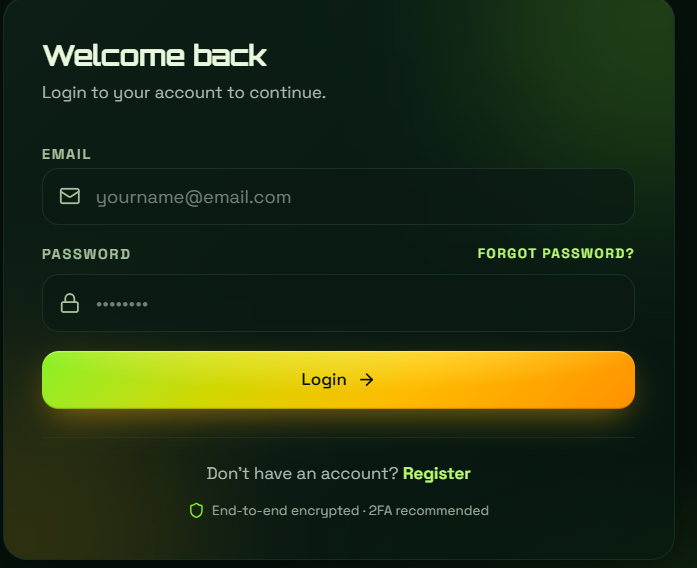
How to Log In to SunZee1 – Step by Step
Step 1 – Go to the Official Website
Open your browser and visit sunzee1.com
Always check the URL before entering your details. The only official address is sunzee-1.pk, do not log in on any other domain.
Step 2 — Tap Login
Click or tap the “Login” button on the homepage. It is visible immediately — no scrolling needed.
Step 3 — Enter Your Credentials
- Mobile number or email address — whichever you registered with
- Password — enter it carefully; passwords are case-sensitive
Step 4 — Complete 2FA (If Enabled)
If you have two-factor authentication active, enter the 6-digit code from your authenticator app or SMS when prompted.
Step 5 — You Are In
Your dashboard loads immediately, showing your wallet balance, active plans, live earnings, and solar array telemetry.
Logging In on Different Devices
| Device | How to Access |
|---|---|
| Android | Open Chrome → visit sunzee-1.pk → tap Login, or open the installed PWA from your home screen |
| iPhone / iPad | Open Safari → visit sunzee-1.pk → tap Login, or open from home screen if installed |
| Windows / Mac | Open Chrome or Edge → visit sunzee-1.pk → click Login, or open the installed app |
Same login credentials work across all devices. No separate accounts needed.
How to Install SunZee1 for One-Tap Login
Instead of opening a browser every time, install SunZee1 directly to your home screen for instant one-tap access.
Android (Chrome):
- Open sunzee1.com in Chrome
- Tap ⋮ the menu → “Add to Home Screen”
- Tap “Install” — done
iPhone (Safari):
- Open sunzee1.com in Safari
- Tap the Share button → “Add to Home Screen”
- Tap “Add” — done
Next time, just tap the SunZee1 icon on your home screen. It opens directly to the login screen.
Forgot Your Password? Reset It in 3 Steps
Step 1: On the login screen tap “Forgot Password”
Step 2: Enter your registered mobile number or email address and submit
Step 3: Check your SMS or email for a reset link or verification code — follow the instructions to create a new password
Your new password should be at least 8 characters and include a mix of letters, numbers, and symbols. Never reuse a password from another platform.
Two-Factor Authentication — Setup and Login
2FA adds a critical second layer of security to your account. We strongly recommend enabling it before your first deposit.
How to Enable 2FA
- Log in to your account
- Go to Settings → Security → Two-Factor Authentication
- Follow the setup instructions — link your authenticator app or enable SMS codes
- Save your backup codes somewhere safe
Logging In With 2FA Active
- Enter your mobile number/email and password as normal
- When the 2FA screen appears, open your authenticator app
- Enter the 6-digit code shown — it refreshes every 30 seconds
- Tap “Verify” — you are logged in
If your code is not working, check that your phone’s time is set to automatic. Incorrect device time is the most common cause of 2FA failures.
Common Login Problems and Fixes
Wrong Password
Fix: Re-enter carefully — passwords are case-sensitive. If you are still unable to log in, use “Forgot Password” to reset it. Do not attempt too many wrong passwords in a row as this may temporarily lock your account.
Account Temporarily Locked
Cause: Too many failed login attempts triggers an automatic security lock.
Fix: Wait 15–30 minutes and try again. If the account remains locked, contact support@sunzee-1.pk with your registered mobile number.
2FA Code Not Working
Fix:
- Make sure your phone time is set to automatic / network time
- Use the current code — it refreshes every 30 seconds
- If using SMS codes, check your signal strength
- Contact support if the issue persists
Page Not Loading
Fix:
- Check your internet connection
- Clear your browser cache and try again
- Try a different browser or switch between mobile data and Wi-Fi
- Make sure you are visiting sunzee-1.pk exactly
Registered Email or Number Not Recognized
Fix:
- Try your alternative registration detail — email instead of number or vice versa
- Check for typos in what you are entering
- Contact support@sunzee-1.pk — provide your registered details, and they will locate your account
Login Works, But Dashboard Is Blank
Fix:
- Refresh the page
- Clear browser cache and cookies
- Try logging in from a different browser
- Update your PWA if you are using the installed version
Keeping Your Login Secure — Essential Habits
Never share your password with anyone — including anyone claiming to be SunZee1 support
Use a unique password not used on any other website or app
Enable 2FA before making any deposits
Always log in at sunzee-1.pk — bookmark it to avoid mistyping
Log out when using shared devices — never save your password on a public computer
Never enter your credentials into any app downloaded outside of sunzee1.com
Change your password immediately if you suspect unauthorized access
Warning – Fake Login Pages
Fraudulent websites copy the SunZee1 login page exactly to steal your credentials. Protect yourself:
- Always check that the browser address bar shows sunzee1.com before typing anything
- Look for HTTPS (padlock icon) in the address bar
- Never click login links sent through WhatsApp, Telegram, or SMS from unknown sources
- SunZee1 will never send you a login link asking for your password
If you accidentally entered your credentials on a suspicious site, change your password immediately and contact security@sunzee-1.pk.
Frequently Asked Questions
Can I stay logged in permanently?
Yes. Enable the “Remember Me” option on login to stay signed in on your personal device. Do not use this on shared or public devices.
Can I log in on multiple devices at the same time?
Yes. Your SunZee1 account works across multiple devices simultaneously using the same credentials.
I did not receive my 2FA SMS — what do I do?
Check your signal. Wait 60 seconds and request a new code. If still not received, contact support through support@sunzee-1.pk.
Can someone else log in to my account?
Only if they have your password and 2FA code. This is why enabling 2FA is essential — a password alone is not enough to access a 2FA-protected account.
How do I log out of SunZee1?
Go to your account menu and tap “Logout.” Always log out when using a device that is not yours.
I think someone accessed my account – what do I do?
Change your password immediately, check your withdrawal whitelist for unauthorized changes, and contact security@sunzee-1.pk right away. Enable 2FA if not already active.
Need Help Logging In?
| Issue | Contact |
|---|---|
| Cannot access account | support@sunzee-1.pk |
| Suspicious login activity | security@sunzee-1.pk |
| In-app support | Available inside your dashboard |
Have your registered mobile number or email ready when contacting support.